Note: These instructions were provided by Jana Ferris, Volunteer Specialist for WSU Extension. Thanks, Jana!
Finding the Course
The landing page for the WSU EP 14 Protection and Safety of Minors training is located at the Extension Campus training platform.
This will take you to a screen as shown below:
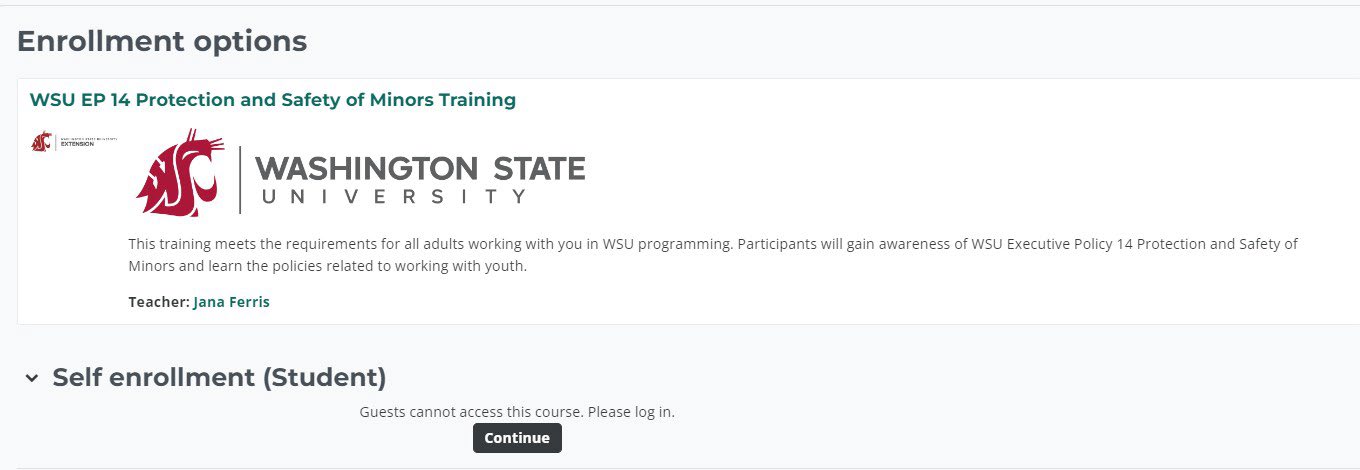
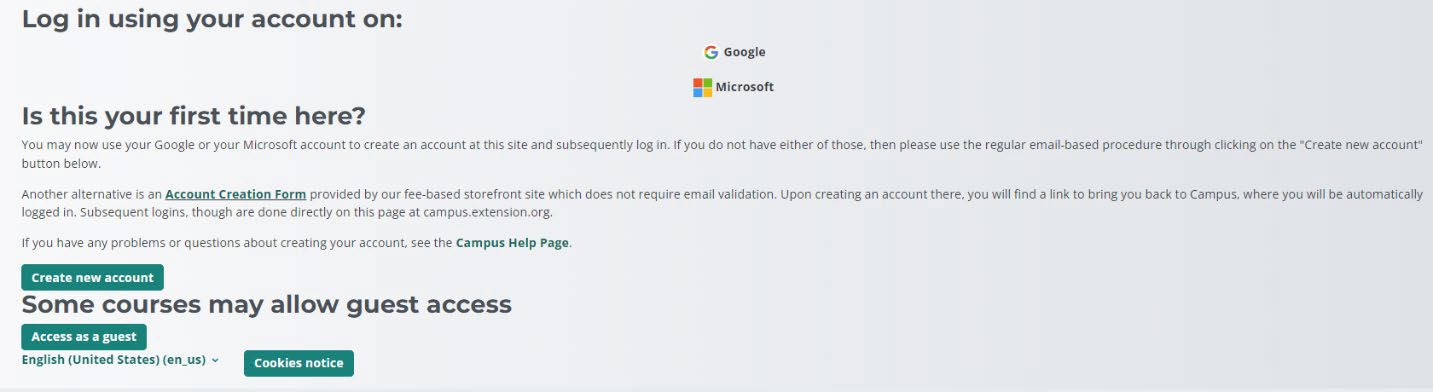
Select on “Continue” to proceed. You will be taken to the login page to log into campus.extension.org. Select the “Logon” button at the top right portion of the page. If you already have a campus.extension.org account, you will be prompted to login. If not, you have three options for logon:
- you may use an already existing Google account,
- you may use an already existing Microsoft account or
- you may create an account. The directions for creating an account are on the login page.
After you have created an account, you will be taken to the EP 14 opening screen.
Enrollment Key
Each volunteer will be asked for an enrollment key. The key for all Snohomish County 4-H volunteers: EP14SN4H
Course Instructions
Select on “Presentation: Promoting Safe Interactions with Youth, Part I” to begin the course.
Select the Enter button on the video opening page to begin the module. To navigate through this presentation, select the Play arrow to begin each section.
When you see a crimson (reddish) button, select it to access further information. To return to the video presentation, select on the ‘‘WSU Safety…’’ tab at the top of your screen.
Select “Continue” to move to the next section.
When you have completed this presentation, either select on “Exit Course” at the top right of the presentation window or “Exit Activity” at the top right of your monitor screen or ‘‘Promoting Safe…..’’ at the bottom right of your screen.
Quiz
Select “Attempt Quiz” to access the quiz. Answer the question presented to move to the next topic. When you have completed your answer, select “Finish Attempt….” Next, select “Submit all and finish,” both times.
When you complete each quiz, if you choose the incorrect answer, select “Finish review.” Select “Re-attempt quiz” on the next screen to re-take the quiz.
Certificate
When you have viewed and/or printed your certificate, you may use the back arrow to return to the course or X out of your screen.